Play, measure and inspect
Present a section with Play, on its own page, and share the link; measure and inspect anything in a frame.
Play a section
Play is Dex’s presentation mode: it opens a section on a page of its own, one step at a time, to present it or have someone test it. Start from a section’s Play, from Play from here in a frame’s menu (or ⌥ ⌘ Enter on the selected frame) to start at that step, or from Play at the top right of the canvas, which presents the selected frame’s section, or else the file’s first section.
- Each view, sketch and spec in the section is a step; a spec shows as it does full screen, with its Editing, Suggesting or Viewing menu and its comments. Docs are left out.
- ← and →, or the arrows beside the step’s name, move between steps. That group also shows where you are.
- The page fills the window, with the bars over it. They fade when the pointer rests and come back when it moves.
- Size shows each step as designed, or plays every step at Desktop, Tablet or Mobile width to try its breakpoints. Pages then scale down to fit.
- C comments on anything. Esc goes back to the canvas, at the frame you were on.
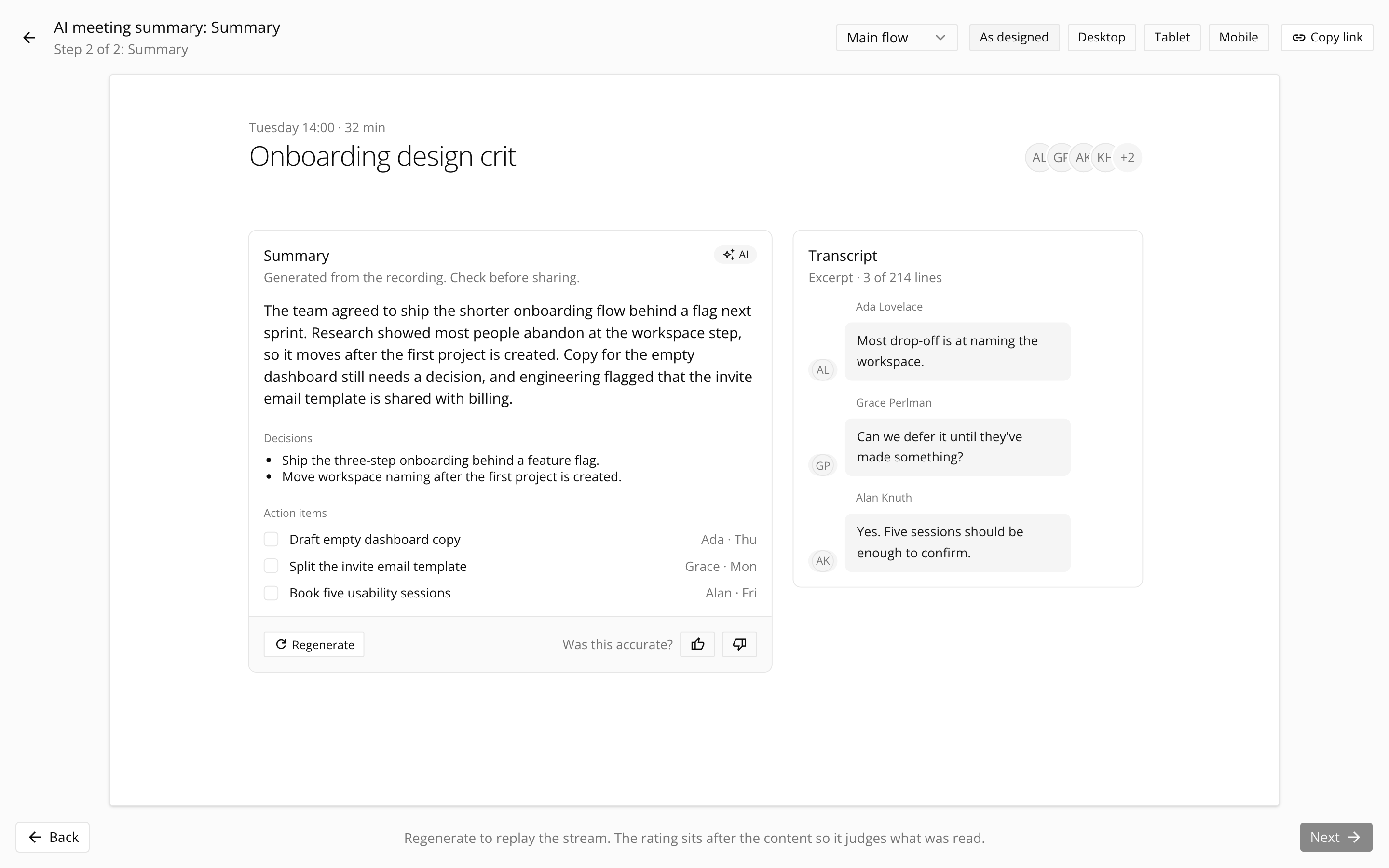
On a built or published Dex, Copy link copies /files/<slug>/play/<section>?row=<row>&step=<n>, with &size=actual or &viewport=<desktop|tablet|mobile> for the size. Links work locally, on a build and published.
Views can step through the section: useFlow() from @studio/kit/use-flow gives flow.next and flow.back, such as <Button onClick={flow.next}>. Outside play they do nothing.
A view can also link to another view of its file, as <a href="/files/<slug>/views/<view>">. The frame moves to that view, and on the play page the section moves to the step that shows it. Links to other sites open in a new tab. Links to anything else, Dex’s own pages included, go nowhere: each view renders on a page of its own, apart from the interface, so nothing in a frame leads out of it.
Measure and inspect
From the canvas toolbar, or by key:
- Measure (M): sizes and gaps. Hold Alt for space inside the container; click to pin, then hover another element.
- Type (T): family, size, weight, tracking and colour of any text. Click to pin.
- Screenshot (S): click a frame to copy it as an image.
- Colour (P): pick a colour from anywhere and copy its hex.
- Grid (G): column grid overlay, set per viewport in the bar that opens over the toolbar. A frame can have a grid of its own in its place: frames pasted from Figma bring their layout grids and guides.
- X-ray (X): outlines every element.
Escape goes back to Select.
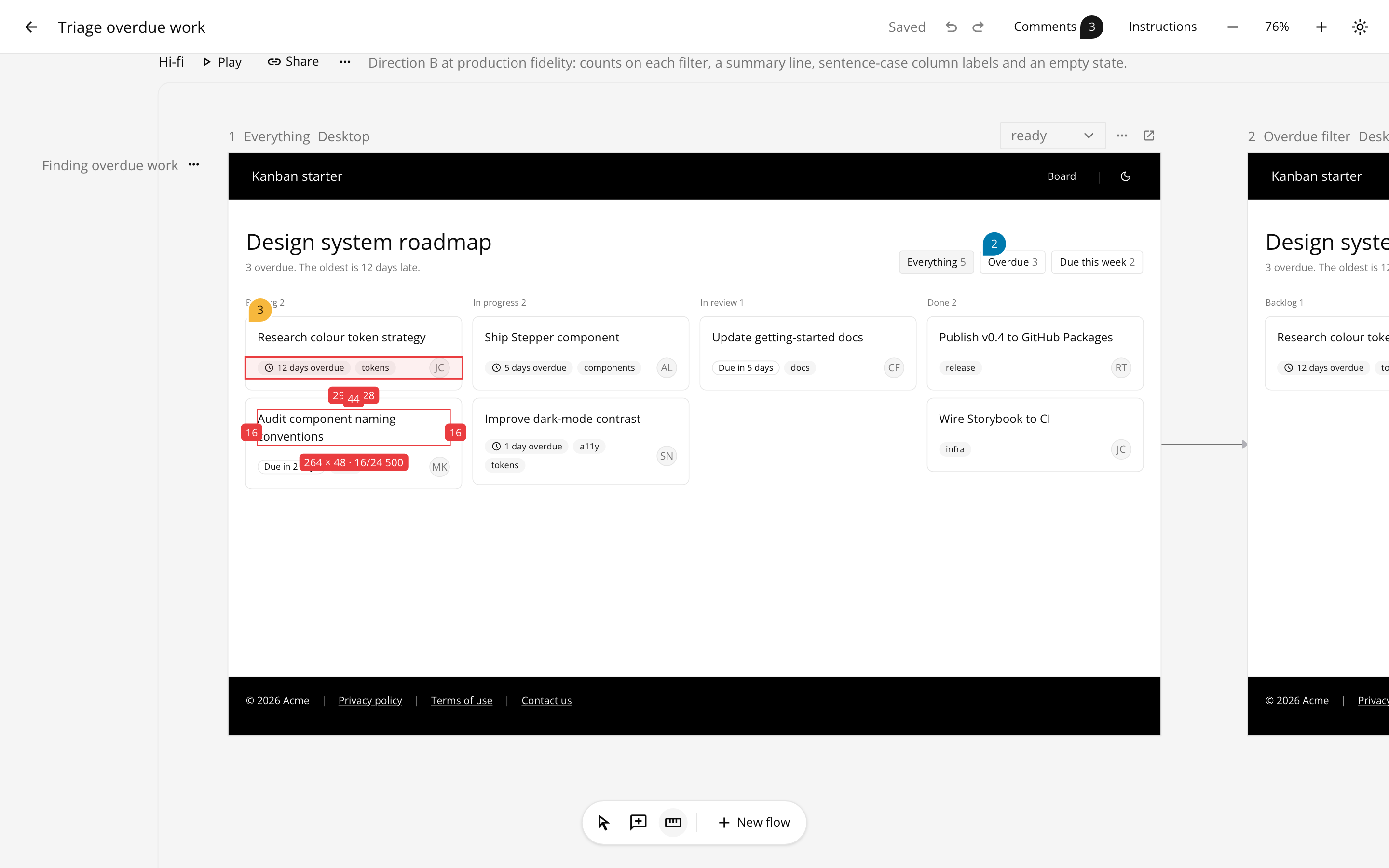
Numbers are CSS pixels at any zoom.