Comments and agents
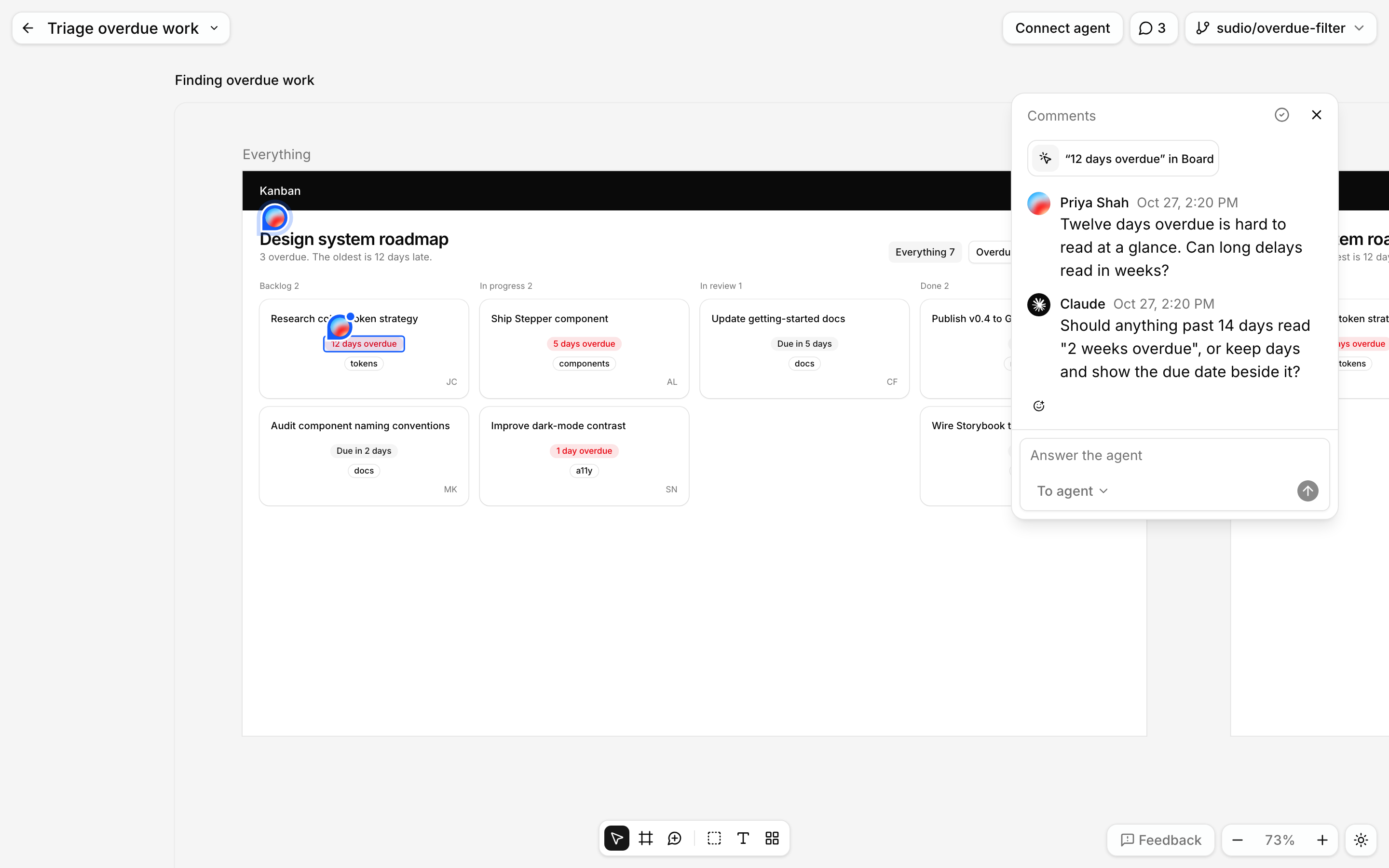
Comment on any element, for your agent or for people. Agents pick up their threads and react as they go: 👀 when one picks a thread up, ✅ when done.
Leave a comment
- Press C on a canvas and click where the comment goes: anything in a frame, a section’s empty space (the comment is on the whole section, and moves with it), or the canvas outside every section.
- Write the comment.
- Choose Post to agent for work, or Post to people for a discussion agents leave alone unless asked.
Comment on a whole frame from its menu, or on the file. You can hand a thread over to the agent or to people later. Requests for new views always go to the agent.
A pin marks where the comment you are writing goes, even while comments are hidden. Each comment on a frame records the view, state, viewport, element selector and text, so agents find the code; one on a section records the section.
Comments and suggestions on a spec
Select words in a spec, on the canvas or full screen, and choose Comment: its words are highlighted in yellow. On the canvas, whoever started each thread shows as an avatar at the page’s edge, level with its words; click it, or the words, and the thread opens beside the spec, never over it. Full screen, each thread is a card in the margin, and the open one shows in full there.
A spec has one mode menu, in its band on the canvas and its header full screen: Editing, Suggesting or Viewing. To suggest changes, choose Suggesting. Then type in the spec as you would: what you add is underlined and what you take out is struck through, but the spec itself does not change. Switch it off, or press Escape, and each change becomes a suggestion for the spec’s owner, with Accept, which changes those words in the spec’s file and nothing else, and Reject. Anyone may suggest, on any spec; only someone who may change the spec accepts: anyone for the file spec, its placer for a spec they placed.
Full screen, Comments in the header hides them, to just read. A thread whose words were deleted moves to the foot of the margin. They are threads like any other, in the file’s comments.jsonl: agents comment and suggest with comment (spec, quote, and replace to suggest), and the quote must match the spec’s words exactly once.
Wireframes
Draw a screen and the agent builds it from your design system.
- Press W, then click a frame to change it, or an empty cell for a new view. Frame and cell menus have it too.
- Pick a kind of UI (navigation, table, button and more) and drag on the page. Click to place one at its usual size. Drag inside a box to nest one.
- Give boxes text: a button’s label, or items separated by commas, such as tabs or table columns.
- Post to agent.
The agent gets each box in reading order, nested under its parent. A new view’s wireframe waits in its cell until it is built. Close the editor and your draft stays until you post it.
Status
| Status | Means |
|---|---|
| For the agent | Waiting for an agent. |
| Picked up | An agent has the thread (👀). It may not have started: the frame shows when it is editing. |
| Waiting for you | The agent asked a question; answer to continue. |
| Open | A discussion between people. |
| Resolved | Done; the last message says what changed. |
| Dismissed | Closed without a change, with why. |
Replying to a resolved thread reopens it.
Finding threads
- Pins follow their element, or their section; the open thread’s element is outlined. A note appears when an agent answers.
- Comments panel: Comments at the top right of the canvas, beside Play, opens this file’s threads under it, those waiting for you first. Tabs at its top show Unresolved threads or All of them; the pins on the canvas and in Play follow them. The filter beside the search shows threads for People or for Agents (as chosen when the comment was posted). Hover a thread to resolve it.
- The bell in the sidebar counts new comments and questions waiting for you. It lists them, then every other open comment, with the same tabs and rows: who, how long ago, what they said, and in which file.
- Links:
/files/<slug>/canvas?thread=<id>opens a thread at its element. - A built studio (
dex build, or a published one) has the comments as they were when it was built, to read: the pins, each thread and the Comments panel, with no reply, reaction, resolve or delete. Its bell lists every file’s comments, open ones first, with no count: a built studio has nobody it would be new for.build.comments: falsein Configuration leaves them out.
Send feedback straight to Claude
Start Claude Code from the studio:
npx dex claudeEvery comment, request and answer for the agent then reaches that session the moment you post it, and Claude starts on it. Nothing needs to watch in a loop. The canvas shows “Claude is listening” while it is.
Where comments cannot be pushed (another agent, or Claude Code started without dex claude), the agent tells you so once and the canvas says it hears comments only when asked. Start a loop to have them answered as they come: /loop 5m action dex comments in Claude Code, or say “action dex comments” after leaving some.
This uses Claude Code’s channels, a research preview: dex claude starts claude --dangerously-load-development-channels server:dex, and Claude Code asks you once to confirm. Team and Enterprise organizations must enable channels first. Any other options are passed to claude.
Or have the agent watch
Other agents, or Claude Code started on its own, can watch instead:
Watch the studio for feedback and work through it.
The agent calls watch, then works through each thread quietly: 👀 when it picks one up, ✅ when done, with a line on what changed on the ✅ (hover it). It writes only to ask you a question, or when you mention it (@agent or @claude) to ask why. Requests become a view in their cell. It stops when you say or when nothing arrives for a while.
Either way, the Watch switch decides whether new feedback goes to the agent: Pause and Resume on the agent bar, at the bottom right of the canvas. Turn it off and new comments wait, pushed to no session and returned to no watching agent, until you turn it back on. The agent can still list them when you ask.
Agents start threads too, with comment, such as a critique’s findings pinned where they apply.
When Claude Code edits a view, its frame shows a moving shader and a “Claude is editing” note: only an edit shows it, not picking a thread up. Other agents use npx dex presence.
What happens after you post
Dex’s MCP server decides who gets a comment and what it shows; the agent decides how to make the change, following the rules and methods in Settings → Agent instructions.
- Noticed. Dex looks for new comments every second. On the channel, comments posted within a second of each other go together.
- Picked up (👀). Dex gives the comment to one agent session, and no other can take it. The 👀 means it is that agent’s, not that it has started: an agent handed several at once works through them in turn, or splits them between sub-agents.
- Grouped. Comments on the same view, or on views sharing a file of their own, go together, with the files they may change. Each request for a new view is its own group. Groups that change separate files run side by side.
- Pointed at the code. A comment on an element comes with its view’s file, the lines that render the element and its CSS rule, when Dex can match exactly one element.
- Editing. While Claude Code edits a view, the frame shows it. The mark goes two minutes after the last edit.
- Closed (✅ or 🚫). Before ✅, Dex checks the code the change touched: the view and its own files, or for a new view, what changed since it was picked up. The code must parse, its stylesheets’ braces must close, and it may import only what Dex allows. While it doesn’t, the thread stays open and the agent is told why. 🚫 closes it without a change, with why.
- Let go. A session that ends before closing a comment lets it go: the 👀 goes, and the comment waits for the next agent. A session that crashes can’t say so; once its heartbeat has stopped for 30 seconds, the studio lets its comments go while a page is open. Replying to a comment also lets it go, as does the agent answering on it.
The Watch switch holds all of this back from step 2 while it is off.
Storage
Threads live in each file’s comments.jsonl, files/<slug>/comments.jsonl, one event per line (a comment, a reply, a reaction, a status), committed as the record of decisions. Lines are only ever added, so a new comment is a one-line diff, and Dex asks git to merge the file by keeping both sides’ lines, so branches with new comments merge cleanly. Studios from before kept a comments/ folder of one file per thread; Dex moves those threads into comments.jsonl the first time it reads them. Change them through Dex, MCP tools or thread command, not by hand. In a cloud workspace they live in the workspace.