The canvas
Each file's canvas is a grid of live views. Steps run left to right; states and alternatives sit in rows below.
The grid
A canvas holds sections, one under another. Each section is a grid:
- Columns are steps, left to right.
- Rows are paths through the section: the main path first, then states and alternatives (declined card, empty list, mobile).
- A row that changes only step 2 has one frame, under step 2. Play fills its other steps from the main row.
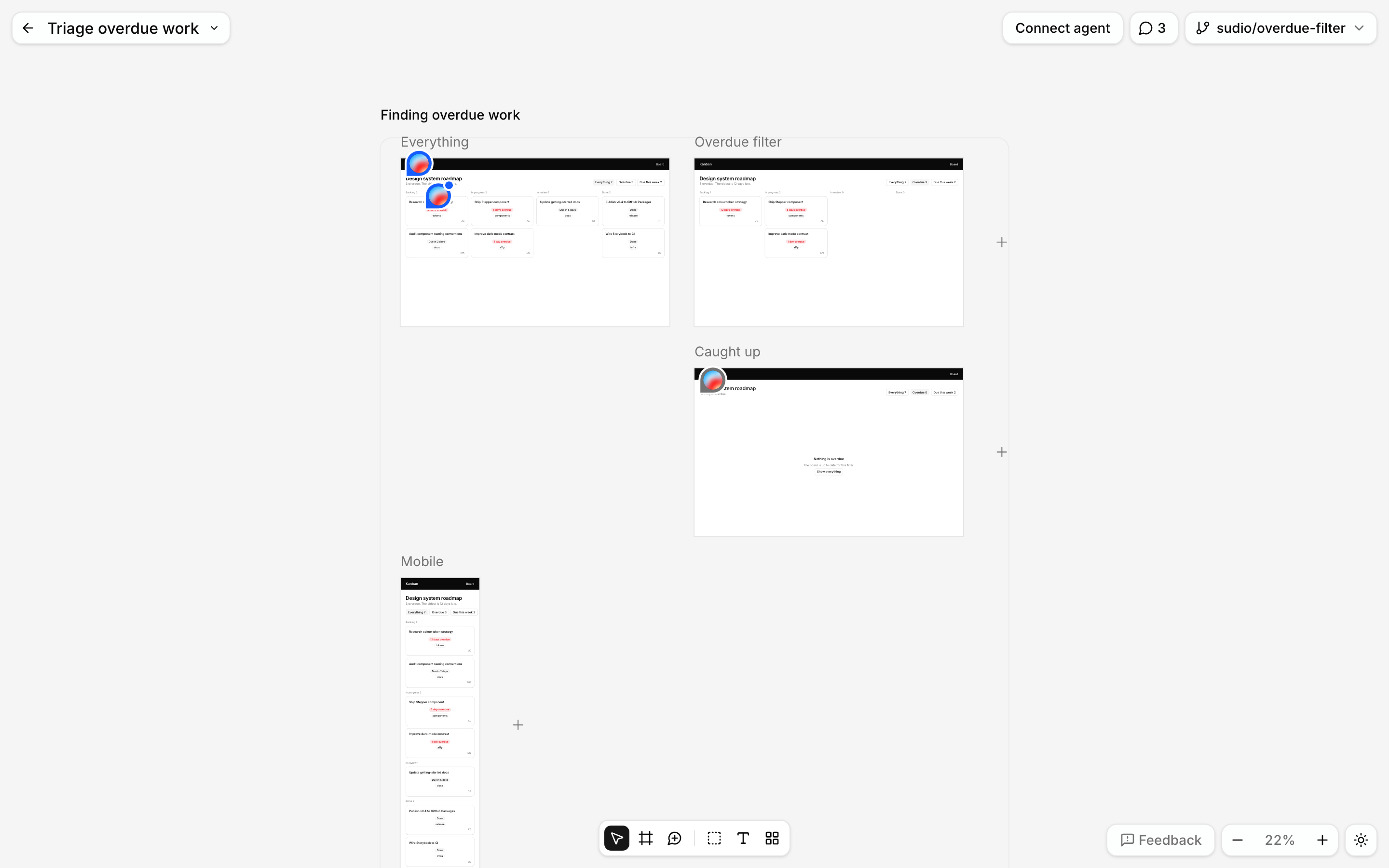
Each section shows its name above it. Hover over the name for Play, to present it, once the section has a view, sketch or spec.
A new file’s canvas starts empty. Press F and drag to draw a frame, its size shown as you drag, or click for a desktop-sized one; Escape stops. A frame drawn away from any section stands on its own where you drew it, and drags anywhere. A comment opens on it: say what it should become, and your agent builds it.
Press D to place a spec: it rides on the pointer, and a click puts it down. Where you put it is what it is for: on one of your sections, it goes in the cell under the pointer and is that section’s spec, which agents follow for work in that section; anywhere else, it is part of the file spec, for the whole file. Place as many as you like: agents read the file’s left to right, top to bottom. Click it to write in it, as you would use a view; its name’s ⤢ opens it full screen. Each spec is a markdown file in your folder, people/<you>/specs/. Renaming a spec changes its name on the canvas, never its file, which comments and decisions point at. Removing one keeps its file: Specs in the file’s archive (View archive in its menu) puts it back. Play skips specs, as it skips documents.
Documents (critiques, briefs, handoff notes in docs/) are written the same way, in place: anyone on the team edits them, and everyone can comment.
Around the canvas
The controls float over the canvas in small groups, and panels open attached under the group they come from, one at a time on each side. With focus in a panel, Escape closes it (in a field, it leaves the field first). In the panel of a mode, such as Wireframe, Escape steps back as it does on the canvas: a selected wireframe box first, then the mode, which closes its panel.
- Top left: Home and a button for each panel this Dex has, such as Frames, Components and Wireframe. Then the file’s name (click it to rename the file). Then who is working and your agent: Connect agent until one is connected, then its mark (hover it for the Watch switch). Then Comments, which opens the Comments panel.
- Top right: Play, which presents the selected frame’s section or else the first one (see Play), then the next git step, such as Commit or Push, which opens Branch and changes (see Branches and pull requests).
- The toolbar, at the bottom: the tools, then Spec (D; see Guidelines), then the file’s settings (the cog): Removed from canvas…, Duplicate and Delete…. Then the zoom (the percentage opens the zoom presets) and the theme. Hover a control for its name and key.
- Bottom left: Feedback.
- A lock beside the name means the canvas is read-only here. Hover it for why: the Dex is built, or Dex can’t tell who you are yet.
⌘ \ hides the panels, the buttons that open them, the agent, comments, git and the toolbar. Home and the file’s name stay, with Show panels to bring them back, and so does Feedback.
Arranging
- Drag frames between cells; they snap. Drag a frame well away from every section and it stands on its own where you drop it. Hold ⌥ as you drop to leave a copy there instead.
- Copy and paste frames with ⌘ C and ⌘ V: copies go back where they were copied from, just after the frames themselves, or in their place after ⌘ X. With one other frame selected, they go after it. ⌘ D duplicates the selection the same way. Copies of a teammate’s frames go in a row of your own.
- Click a name to rename a section, row or frame. A row’s name is optional: hover where it goes to add one.
- Click the + beside a selected frame to add a view or document after it. Or choose Ask an agent for a new view and describe it: the next agent watching the studio builds it in that cell and resolves the request. Or draw it: see Wireframes.
- Add in the toolbar draws a Frame (F); its menu draws a Section (Shift S). Drag out the section’s area where you want it: the frames it covers go in it, the canvas stays where it is, and its name is ready to type. To make a section of frames you’ve selected, right-click them and choose New section from these.
- Drag a section by its name above or below another of yours to reorder them.
- Click a section’s name to select it, outlined as a selected frame is. As in Figma, Delete removes it with its frames, ⌘ C, ⌘ X and ⌘ V copy, cut and paste it whole (a paste goes just after it, or back in its place after ⌘ X), and ⌘ D duplicates it. Resize a section by its right edge, bottom edge or corner; double-click one to fit it to its frames again. Its frames still grow it, and taking frames out leaves it the size it was.
- Right-click frames for Copy as PNG (one view) and Download PNG (a file for each view), New section from these and, on its own at the end, Remove from the canvas. A PNG is the view’s whole page at its frame’s size, in your theme, rendered by Playwright’s Chromium (
npx playwright install chromium). - A teammate’s sections and frames stay theirs: comment on them, or change a frame to make a copy of your own. They do not move or go.
- Select a frame to size it from the bar under it: a device from its menu (desktop, tablet, mobile), or a width (W) and height (H) of its own, which the reset button undoes. Or drag its edges or corner.
Changes save to canvas.json at once, with undo. Agents’ edits appear as they save.
Show every state below, in a frame’s menu, turns the states a view offers through useViewControl into rows, so none hide behind its picker.
Keyboard
| Keys | Does |
|---|---|
| V, C | Select, comment |
| F, Shift S | Draw a frame, draw a section |
| D | Place a spec |
| M, X, G | Measure and inspect |
| Shift 1, Shift 2, Shift 0 | Fit all, fit selection, 100% |
| ⌘ +, ⌘ −, ⌘ 0 | Zoom in, zoom out, 100% |
| ⌘ A | Select all |
| ⌘ C, ⌘ X, ⌘ V | Copy, cut, paste frames and sections |
| ⌘ D | Duplicate selected frames or sections |
| Enter, Shift Enter | On a section, select its frames; on frames, select their section |
| Enter | Use the frame as a live page |
| ⌥ ⌘ Enter | Play from the selected frame |
| Escape | Step out or deselect |
| Space and drag | Pan |
| Arrows, Shift arrows | Nudge the view, further |
| ⌘ Z, Shift ⌘ Z | Undo, redo |
| Delete | Remove selected frames or sections |
canvas.json
{
  "sections": [
    {
      "id": "checkout",
      "title": "Checkout",
      "description": "Paying for a basket, and what happens when it fails.",
      "rows": [
        {
          "id": "main",
          "frames": [
            { "id": "cart", "view": "cart", "viewport": "mobile" },
            { "id": "pay", "view": "pay" }
          ]
        },
        {
          "id": "declined",
          "title": "Card declined",
          "frames": [{ "id": "pay", "view": "pay", "step": 2, "params": { "state": "declined" } }]
        }
      ]
    }
  ]
}| Field | Meaning |
|---|---|
sections |
The sections, in order. |
id, title |
On sections, rows and frames. Frame ids are unique per row. |
description |
One line about a section. |
view or doc |
Exactly one: from views/ or docs/. |
step |
Column, from 1. Omit to follow the previous frame. |
viewport |
desktop (1280×800, default), tablet (768×1024), mobile (375×812). |
size |
{ "width", "height" }, a size of its own in place of the viewport’s. |
params |
The view’s query string. |
Documents can sit beside views; play skips them. npx dex check validates canvases; build fails until it passes.